On the Main Window
The most obvious way to find donors is to scroll through the Donor List on the left-hand side of the main window. As with all scroll boxes, you can click on the scroll arrow at the top or bottom of the scroll box to scroll slowly, or click on the scroll bar itself and drag it up or down to scroll very quickly, or click in the empty area above or below the scroll bar (or use the PgUp and PgDn keys) to scroll by one screenful at a time.
However, there are two better ways to find donors, which are built into this program.
Finding by Typing in the Donor List
Once the program's focus is on a donor in the Donor List, you can start typing letters of the last name, and it will immediately scroll to the closest match that starts with those letters. (You can also do that with business names, as long as they don't start with a number.) You can backspace to correct mistakes (one character at time) or press ESC to eliminate what you have typed so far and then start over. The letters you have typed show up in the "Find Name / #" area at the bottom left corner of the screen. Usually after you have entered 3 or so letters, you will find that the donor you want is already in view, and you can just click on it. You can also scroll with the up and down arrow keys, and with PgUp and PgDn.
If you start typing numbers instead of letters, it will search for a donor whose member or envelope number is the same as the numbers you have entered. You can use the number keys at the top of the keyboard, or the ones on the numeric keypad, as long as NumLock is on. This also shows up in the "Find Name / #" area at the bottom of the screen. You have to type the whole number to find the member you are looking for. (Note: Versions of DONATION prior to version 3.00, released in late 2007, had a weakness, where typing an initial part of a number could go to any donor whose number started with what you had typed so far, so for instance just typing 1 could have gone to the donor with number 10. That is no longer a problem.)
Unfortunately for technical reasons this method can only handle a limited set of characters in names - regular English letters (no accented letters), the nine digits, space, comma, and dash. (It could technically handle other punctuation characters, but they are not commonly found in names!) If you need to search for any names using any other characters, including accented letters, use the following method instead.
Using the Find Donor Window
If you wish to find a first name, or part of a name if you are not sure of the spelling, or search on a part of a name containing accented characters, or find by phone number, address, or email address, use the File ⇒ Find Donor menu option, or Ctrl+F (i.e. hold down Ctrl and press F). The following Find Donor window will come up:
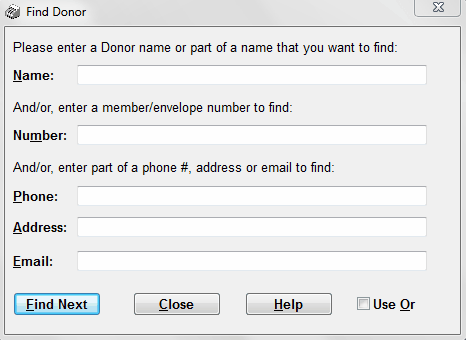
The fields you can find on are:
Name: Any part of a name (in the format "Last, First") or of the Business Name for donors that have a Business Name.
Number: The exact member or envelope number.
Phone: Any part of the phone number.
Address: Any part of any of the three donor address fields, or the donor postal code field.
Email: Any part of the email address.
For all four text fields (Name, Phone, Address and Email) uppercase and lowercase don't matter. In addition, you can use the special character "%" to represent any missing string of characters. For instance, "Cooper%Dan" will find "Cooperstock, Daniel" in the Name, or "123%5678" will find "(123) 111-5678" or "111-123-5678" in the Phone number.
If you fill in more than one of the fields, normally all of the fields will have to match for a donor to be found. However, if you check the Use Or checkbox, donors matching any one or more of the fields you filled in will be found. (I.e. the conditions are joined by "or" instead of by "and".)
After entering whichever field(s) you want to find on, click the Find Next button or press Enter. The Donor List on the main window will immediately scroll to the next match for that name in the Donor List, or beep if there is no match. You can keep finding further matches by clicking Find Next or pressing Enter repeatedly. When you are done finding with this window, just click its Close button or press ESC.
As you will notice, the currently selected donor on the Donor List is always highlighted, and has a little pointing hand icon to the left of it. The current donor also shows up in the Donor Details area, and any donations for it show up in the Donations area.
Finding for Limited Users
If you are using the Limited User Password, and have the setting set that limited users can't see donor names at all, then limited users see a version of the Find Donor window that only allows them to find by member/envelope number.
Finding on the One Date Batch Entry Window
The same find window that comes up when you use File ⇒ Find Donor or Ctrl+F on the main window is also available on the One Date Batch Entry window for donations, by clicking its Find Donor button or using either Alt+F or Ctrl+F. It works in exactly the same way.
One thing that is slightly odd about this is that you are still able to find by Phone number, Address or Email on the One Date Batch Entry window, although you cannot immediately see the values in those fields. However, that window has a popup tooltip, when you hover your mouse over the Name field for a donor, that displays whichever of the phone number, address, and email that have been filled in. So that way you can check it's the right one.
This topic was last edited on Mar 23, 2023