It is recommended that all users of DONATION register, to get onto the mailing list. It is actually required that you do this for Software4Nonprofits to be able to process any payment you make for the program, or give you an evaluation extension request, or a license key.
If you have not yet registered (or informed the program that you have done so) a window will come up whenever you start the program, informing you of the benefits of registration, and asking you about registering. It gives you three options: going on to register (as shown below), informing the program that you already registered online or from another computer, or skipping that and being asked about it the next time you start DONATION.
There are two ways to register. Many OnDemand users will already have registered using the registration form on the web site. If you haven't done that, however, you can also register using the Tools ⇒ Register Online menu option in the program.
When you select Tools ⇒ Register Online, or are sent to this window from the window asking you whether you have registered (if you click Register Now in that window), a window such as the following will come up:
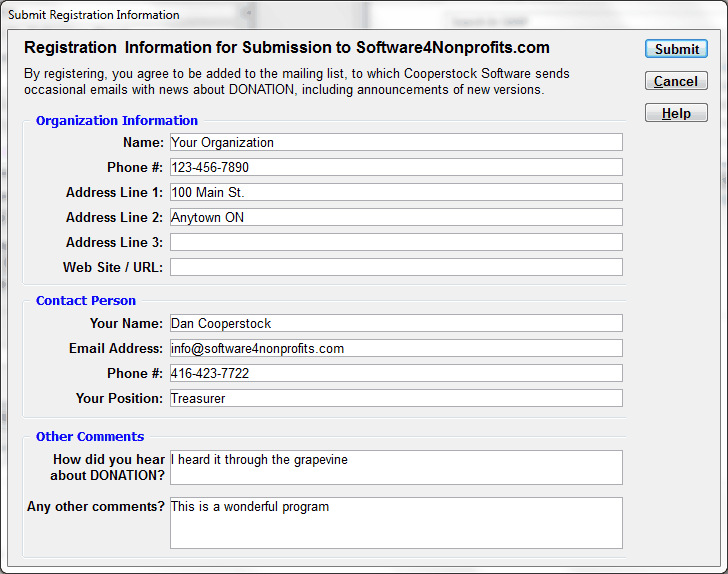
Some of the field values are initially filled from the information in the Maintenance ⇒ Organization Info window. If you have previously used Maintenance ⇒ Email Sending Configuration to configure email, the email address for this window will be taken from that configuration.
You can fill in or edit all of the fields, as desired. If you do this registration multiple times on the same computer, your previous entries for those fields will be displayed. However, there is normally no need to register multiple times, unless your contact information changes.
The one slight exception to what is said above is that the Your Name field will be taken from the Receipting Person field on the Organization Info window, but you might want to edit it for registration purposes. Any change you make in this field will not change the Receipting Person.
After filling in all desired fields, click Submit. That will bring up a web page showing that your registration was successful. Clicking Submit on this window will also close this window.
Within a reasonable period of time (usually much less than one day), you should receive an email acknowledgement of your registration back from Software4Nonprofits. In the case of a first registration for the OnDemand version, your login information will be sent shortly afterwards.
This topic was last edited on Dec 4, 2024