The most common way to make backups of the program's database is via the Backup/Restore ⇒ Backup Database menu option, which saves backups onto your hard drive, or a drive accessible from your PC (such as a USB memory key, a writeable CD or DVD, or a network drive).
However, another option is the Backup/Restore ⇒ Email Backup menu option. This allows you to email a database backup as an attachment, either to yourself, or to someone else. This can be helpful when you are moving the program from one computer to another, transferring your data between multiple computers on which you have installed DONATION, or you just want to have an "off-site" backup, sitting in the servers of your web mail provider (such as Hotmail, Gmail or Yahoo Mail) or in an email program that you have on another computer. If you have multiple databases created with the Database ⇒ Switch Databases menu option, each must be backed up, whether regularly or by email, independently.
Note: Users of the Local Network Client version of DONATION cannot email backups or restore emailed backups - that must be done from the Local Network Server version.
It is important to understand that once you have multiple years of data in DONATION, all of those years of data are always backed up together, by either type of backup. There is no way to backup only one year of data.
Before you can use Email Backups, the Maintenance ⇒ Email Sending Configuration menu option must have been used, to set up how emails are sent from DONATION.
The database backups that are sent by email are compressed (made smaller, to make them email more quickly) and encrypted (scrambled, with a password that you provide, for better security). IMPORTANT: If you forget the password that you specify for encrypting your emailed database (in the steps below), we cannot help you restore that database. So you must remember that password yourself. The passwords are case-sensitive.
Databases that you have emailed can be restored to a DONATION program by using the Backup/Restore ⇒ Restore Emailed Backup menu option. Alternatively, you can select to open the attachment in your email program, or save it and then double-click on it in a Computer, My Computer or Windows Explorer window, as long as DONATION is not currently running. Either of these actions will cause DONATION to open, and prompt you as to whether to restore the backup. (See Restoring Emailed Backups for details on how this works.) There is no way other than restoring a backup to access the data in it.
When you select Backup/Restore ⇒ Email Backup, the program first creates the database backup, storing it in a standard folder and filename, with no prompting. (Specifically, it is stored in the Backup directory underneath the program's data directory, with the filename DONATION-YYYY-MM-DD.HH.MM.SS.DB.Encrypted, where YYYY-MM-DD is filled in with the current date, in that format, and HH.MM.SS is the current time.) If you are backing up an alternate database, created with the Database ⇒ Switch Databases menu option, which has a different file extension, that extension will replace the ".DB" part of the filename.
Next, you will see the following window for you to specify the password that you want to use for the encryption of the database. If you want to be sure you know what you are typing in, click the "Make password visible rather than stars" checkbox. Note: if you enter too weak a password you will be encouraged to enter a strong password instead.
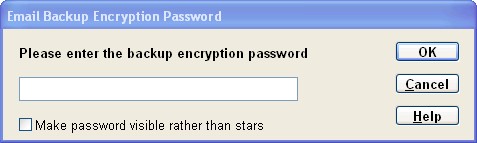
After you click OK, followed by a short pause, a message comes up indicating that the encryption was successful. Next, the following email sending window comes up:
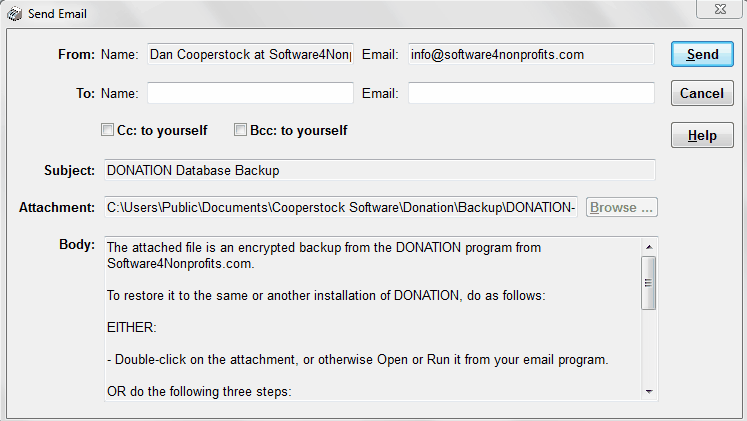
(Of course, it will have your details in the From Name and Email fields.) All you have to do is fill in the To Name and Email address, to determine who the email is to be sent to (generally yourself or a colleague in your organization), and click Send. If you have used Backup/Restore ⇒ Email Backup successfully before, the To Name and Email will even be memorized for you, and restored to this window when it comes up, so that unless you want to send it to someone different, all you have to do is click Send.
The To Email can include multiple email addresses separated by semicolons, such as "john@gmail.com;mary@gmail.com", without the quotes. If you do that, a single email will get sent, with both addresses on the "To" line.
If you are sending the email to an email address other than your own (i.e. the From Email and To Email are different), you may also optionally check the "Cc: to yourself" or "Bcc: to yourself" checkboxes, to send a copy or blind copy respectively of the email to your From Email address.
The name of the encrypted attachment is always DONATION-YYYY-MM-DD.HH.MM.SS.DB.S4B, where YYYY-MM-DD.HH.MM.SS is the current date and time. If you are backing up an alternate database, created with the Database ⇒ Switch Databases menu option, which has a different file extension, then the ".DB" part will change. For instance, if the database is named DONATION4.OTHER, the attachment will be DONATION-YYYY-MM-DD.HH.MM.SS.OTHER.S4B. ("S4B" stands for Software4Nonprofits Backup!)
Deleting Old Backups
Because each backup is by default given a distinct name, including the date it was made, the backups will tend to accumulate in the standard directory used for creating the email backups (the Backup directory underneath the program's data directory). To allow you to control this, the Backup/Restore ⇒ Backup Frequency and Options window gives you an option to either retain all backups, or retain only the latest "N" backups in each backup directory, where you set the value "N" (between 3 and 20). If you do not set this, the default is to retain all backups.
If you do set that value, whenever you make a backup, the other backups in the same directory are examined, and only the most recent "N" of them are kept, with the older ones being deleted. (Both the .Encrypted and the .S4B files will be deleted, with the most recent "N" of each being kept.)
This topic was last edited on Dec 4, 2024