When you select the Backup/Restore ⇒ Backup Frequency and Options menu option, the following window appears:
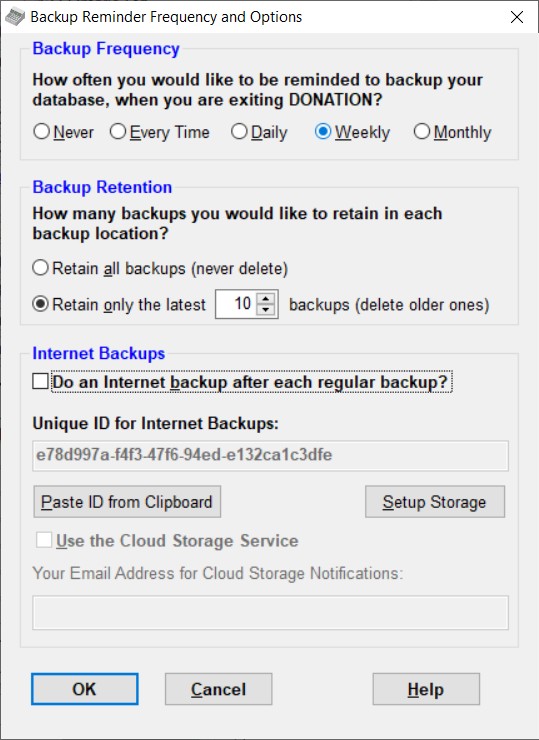
By default, the program reminds you weekly to backup your database, as you are exiting the program. If you wish to be reminded with a different frequency, you can use the radio buttons in the top section of this window. They give you the option of Never, Every Time, Daily, Weekly, or Monthly. If you don't set it, it defaults to Weekly. If you enable the Cloud Storage Service (described below), only the frequencies Weekly and Monthly will cause these reminders to do regular backups as you exit the program - Every Time or Daily are superseded by the fact that the Cloud Storage Service backs up every time for you.
Unless you are using the Local Network Client Version of DONATION, and a different user (probably the one whose computer is running the Local Network Server Version of DONATION) is definitely making regular backups, it is strongly recommended that you do not select the option Never.
If you are not making regular backups off of your hard drive (and someone else or some automated process is not doing so), you might as well not be using the program - there is real possibility that your hard drive and/or computer will die at some point, and you will then have no data!
If you have not done a backup within the configured period of time (with either Backup/Restore ⇒ Backup Database or the Backup/Restore ⇒ Email Backup option), you will be prompted to do a backup the next time you exit the program. If you select the option "Every Time", you will be prompted to backup the database every time you exit the program, even if you have already made a backup during that run.
The next section governs how many sequential backups are stored in any one backup destination, such as a folder on your hard drive, or a USB memory key. Backup files in current versions of DONATION include the date and time in their filename, for instance DONATION-2015-12-31.15.30.30.DB.GBK for a backup made on December 31, 2015 at 3:30pm. So normally, backups done on different days and times have different filenames, and they will accumulate in whichever folder or drive you are saving them in.
To let those backups accumulate indefinitely, select the "Retain all backups (never delete)" radio button. To only keep a certain number of the latest backups you have made, use the "Retain only the latest" radio button, and set a number in the field following that. (You can only change that number after you have selected "Retain only the latest".) Allowable values in that field for the number of backups to retain range from 3 (fewer would be unsafe!) to 20. If you think you want more than 20 backups to be retained, just use the "Retain all backups" option instead!
Trick: If you are making a backup and don't want it to be deleted by the "Retain only the latest" option, perhaps a year-end backup, change the backup filename as you are making the backup to not start with "DONATION". For instance, you might call it "2015YearEndDONATION-2015-12-31.12.00.00.DB.GBK (or whatever the actual date and time is on which you are making the backup). When the "Retain only the latest" option is turned on, only old backups whose name starts with "DONATION" will be deleted.
Note: The setting to retain only some latest number of backups does not apply (and thus cannot be set!) for the Local Network Client version of DONATION, because it cannot "see" the other backups on the Local Network Server Version's computer, in order to decide which to delete. (And it couldn't delete them either.)
Configuring Internet Backups
The first set of controls at the bottom of the window determine whether or not a backup to a secure Internet location is made after every regular backup. The "Do an Internet backup after each regular backup" checkbox starts out unchecked, in which case none of the buttons below it can be used. If you do wish to do Internet Backups, check that checkbox.
After checking the "Do an Internet backup after each regular backup" checkbox, if you do not already have a Unique ID for Internet Backups, which in many cases you will, it will be created for you. To ensure that they are unique, so that your backups don't get mixed up with any other organization's backups, you cannot simply type it into that field yourself. Instead, if this is the first time you or your organization have made Internet backups for this database, as mentioned it will be created for you.
If you are moving DONATION to a new computer, and don't have a local backup but rather want to restore your latest Internet backup in order to get a copy of the database, you may have been sent the Unique ID in an email. In that case, copy it to the Windows clipboard (by highlighting it in that email with your mouse and pressing Ctrl+C, i.e. hold down Ctrl and press C), then click the Paste ID from Clipboard button in this window to paste it into the field.
Finally, once you have your Unique ID you need to click the Setup Storage button to set up a secure storage area in the Internet storage for backups, associated with your Unique ID, and a with a password that you will be prompted for. For greater security, the password you enter must be a strong password.
Note: There is no way to recover your Internet backup password if you forget it, so please be sure that multiple people in your organization know what it is.
To help ensure that you cannot lose your Unique ID, two additional steps are taken by the Setup Storage button, after the basic setup has been completed. First, you are prompted with an option to email your Unique ID (but not your password!) to Software4Nonprofits, for safe storage. That way if you lose everything else (but at least know your Internet backup password), we can supply the Unique ID back to you, and you can recover your latest Internet backup. A copy of that email will also be sent back to you, so you can forward it to others in your organization, for safe keeping.
After that email is (optionally) sent, a report is displayed listing your Unique ID, and with a place on which you can write in your password, if you feel secure about doing so. Please Print that report, and keep copies of it in a safe place.
If you need to send that email or print that report again in the future, you can come back to this window and click the Setup Storage button again - it will not change the Unique ID.
You can also copy the Unique ID to the Windows clipboard by clicking into the field displaying it, and pressing Ctrl+C. That will show a message explaining that you can then paste that into an email with Ctrl+V. You might want to do this to send it to a new user who has also installed the program, to enable them to restore the latest Internet backup. You will also have to send them your Internet Backup Password (preferably in a separate email, for security).
Please note that Software4Nonprofits will not store your Internet backup password for you. If we did, our computers would become a potential place of attack for hackers trying to access all DONATION program users' databases, and that is not desirable!
Internet Backups when you have Multiple Databases
If you have multiple databases for multiple organizations, using the Database ⇒ Switch Databases menu option, each one needs its own configuration for Online Backups, and will have its own Unique ID and associated secure storage area. Do not copy and paste in the same Unique ID for all of them, or your backups could get mixed up!
Internet Backups when you have DONATION on Multiple Computers
Many users keep copies of DONATION on multiple computers, and transfer their database between those computers. (When you do this, you must be sure to keep track of who has the up-to-date copy, on which changes can be made, because changes made in two copies of your database cannot be merged!)
When you do have copies of the same DONATION database on multiple computers, you must be sure to use the same Unique ID for Internet backups and Internet backup encryption password in both databases. The Unique ID is stored in the database, so any method of transferring the database (other than restoring an Internet backup, prior to the configuration of the second computer!) after you complete your Internet backup setup will get the same Unique ID onto the other computer. That includes transferring regular backups on a USB memory key, or use Email Backups.
Alternatively, you can forward the email with your Unique ID to the user on other computer, and have them copy it out of the email, and paste it in to this window with the Paste ID from Clipboard button. You also must inform them of the Internet backup encryption password you are using (but not in the same email - that's not very secure, to have both pieces of information in the same email!). They can then re-do the Setup Storage (which doesn't change anything, as long as it is done with the same password), and then they can restore your Internet backup.
Using the Cloud Storage Service
The final checkbox on this window, "Use the Cloud Storage Service", turns on that Cloud Storage Service, which is an automated mechanism for using Internet backups to securely share your data between multiple computers running the Standard version of DONATION. Please be sure to carefully read that Help page for full details.
When you turn this checkbox on, you will no longer be prompted to make backups when you exit the program as specified at the top of this window if you set the frequency to Every Time or Daily, because the service normally does the backups every time you exit the program. You will still be prompted to make local backups at the specified frequency if you set that frequency to Weekly or Monthly, and in fact the program will suggest this to you if you don't do it yourself.
To complete the setup for using the Cloud Storage Service, you also have to enter "Your Email Address for Cloud Storage notifications". That should be an email address unique to this computer (and presumably to the user who most commonly uses it) that the service can use for sending emails to you in certain circumstances. (Specifically, it will send you an email if you have somehow kept control of the database for over 18 hours, and another user accepts an option to break that control.) If your email address changes (or the user of this computer changes) you can come back to this window to change this value.
If you have already been transferring copies of your database between multiple installations of DONATION, be sure that you have the most up to date database first on the computer on which you first turn this service on, because it will then become the "official" copy when you exit the program.
Turning on the Cloud Storage Service disables the other controls about Internet Backups, because making any changes there would inappropriately affect the Cloud Storage Service. So among other things, you cannot turn off Internet Backups when the Cloud Storage Service is on, because the service uses those Internet Backups. (If for some reason you need to turn both off, just turn the Cloud Storage Service off first.)
This service is not available with the Local Network or OnDemand versions of DONATION, because they use completely different ways of sharing just one database file. So you will not be allowed to turn on this checkbox if you are using any of those versions.
See Also: Making Internet Backups, Restoring Internet Backups, Internet Backup Security, Cloud Storage Service
This topic was last edited on Feb 17, 2023