If you have set a Receipt Password, entering it is required to use this option. You can do that by entering it when the program starts up (if you have also set a Program Entry password), or when you do this menu option that requires it.
You can print a selected subgroup of all outstanding receipts (and/or all outstanding receiptable donations) with the Receipt ⇒ Filtered Donors option. This brings up the Selection Criteria for Receipts window, as follows:
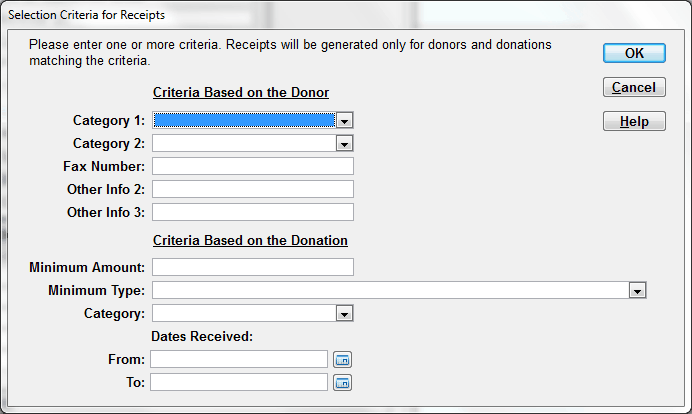
That allows you to specify criteria based on the Donor (a value of Category 1, and/or a value of Category 2, and/or some text found in any of Other Info 1 through 6) and/or criteria based on individual Donations (a minimum donation Amount, and/or a donation Category, and/or a range of the donations' Dates Received). All donors and donations matching all of the entered criteria, which haven't yet been included on a receipt, and which are otherwise receiptable, will have the receipts generated for them. (To see how to donors or donations are determined to be Non-Receiptable, please see Non-Receiptable Donors and Donations.) Like Receipt ⇒ All Donors, this will print at most 500 receipts at a time.
Note that on this window, only the Other Info fields that you have specified should be shown, by checking their checkboxes on the Donor tab of the Maintenance ⇒ Main Window Options window, will be displayed for use in filtering here. Also, if you have assigned names to those Other Info fields on that same window, they will appear here as well. In the example above, the user has chosen to have only the default Other Info1 through 3 fields displayed on the main window, and has given the name "Fax Number" to Other Info 1.
Text entered in any of the fields in this window for Other Info fields is searched for within those fields case-insensitively (upper or lower case doesn't matter). So for instance you had entered "On Library Committee" as some donor's Other Info 2 value, and you entered "library", "Library", or "LIBRARY" in the field here (without the quotes), that would match, and that donor would be selected for receipting, as long as any other criteria you entered also matched and they had receiptable and so-far unreceipted donations.
The Minimum Amount and Minimum Type Criteria
If you enter a Minimum Amount for the donations, you also have to enter a Minimum Type. That has three options, each with a different meaning:
1.Include all donations from donors with at least one donation >= the Min. Amount: This selects only donors who have at least one individual donation line whose Amount is at least the Minimum Amount, but then selects all unreceipted donations for those donors.
2.Include all donations from donors whose donations total at least the Min. Amount: This selects only donors where the sum of the Amounts of all unreceipted donations for that donor is at least the Minimum Amount, and includes all of those unreceipted donations.
3.Include only donations that are themselves >= the Min. Amount: This only includes unreceipted donation lines whose Amount is at least the Minimum Amount, and excludes any smaller amounts from the receipt for the donor.
Note that the options are not actually numbered on the Selection Criteria for Receipts window - they are just given numbers here for easy reference in the following discussion.
Why Use Filtered Receipts?
Here are a couple of reasons you might use Receipt ⇒ Filtered Donors. Some charities may choose to only issue receipts for donations of at least a certain dollar amount, to cut down on their administrative costs - if that is allowed in their country. To get this effect, just enter your desired minimum for "Minimum Amount", and select either option (1) or option (3) above for the Minimum Type. Of course, you are allowed to send receipts to donors with smaller donations, so option (2) is also available, and you may choose to just use Receipt ⇒ All Donors if you prefer.
One minor problem with options (1) and (3) is that if a donor gave your specified minimum amount but it was split between two donation Categories (say part for "General" and part for "Special Project") then a receipt will not be issued with the specified Minimum Amount using Option (1) or (3), because each individual donation line you entered was for less than that amount.
If this situation is a problem for you, you can use option (2) instead, because it is not affected by that problem. Alternatively, to check for such problems, you can use Reports ⇒ Donation ⇒ Unreceipted Donations to list all donations that have not received a receipt, and watch for this problem. The report is sorted by name then date, so you can look for two donations from the same person on the same date adding up to your minimum amount or more. If you find any such donations, just use Receipt ⇒ Current Donor Original to issue a receipt for that donor individually.
One organization asked us about issuing sets of receipts separately for two major campaigns they were doing. This could be handled by giving either donors or donations to those campaigns a special Category value, then filtering on that category value.
Very occasionally a donor who has multiple unreceipted donations will need a receipt for just one of their donations, or a range of dates of their donations, for some special reason. That can be handled by using the Dates Received criterion, setting the From and To dates to the appropriate dates. You will also need to use some donor criterion that restricts the selection to just that one donor. (You may need to temporarily save some special value in a donor field for that donor, perhaps one of the Other Info fields, to give you something to successfully filter on.)
Another case where you might want to use the Dates Received criteria would be if your organization is having an official name change, and all donations up to a given date should have receipts with the old name, and all later donations should have receipts with the new name. You could just create all receipts after you enter the donations up to the name change date, and before you enter any later donations, with Receipt ⇒ All Donors, and then make the name change after that. But if you miss your chance to do that (you have already entered later donations), you could use the From and To Dates Received to create the receipts for only the donations from the start of the year up to the name change date. Then once that is done, make the name change in Maintenance ⇒ Organization Info.
What if the Receipts are Wrong?
If you have generated the receipts, and you look at them on-screen, and the wrong donors or donations seem to have been selected, do not print them, save them to PDF or email them. When you do any of those actions, they are saved to the database. Instead, just click Close on the Reports window on which the receipts are being displayed. The receipts will then not be saved back to the database.
If you have printed the filtered receipts, and then decide that they are incorrect, in many cases you can delete them from the database, with the Receipt ⇒ Delete Range menu option.
After this, try again with Receipt ⇒ Filtered Donors, changing your criteria as appropriate, or just use Receipt ⇒ All Donors.
For Canadian Users
As with Receipt ⇒ All Donors, you might have to run up to 4 versions of filtered receipts, depending on the types of donations you have recorded that match the filter criteria. If you have cash donations with advantage (split receipting), and also ones without advantage, you will have to run this twice to generate the receipts for donations with and without advantage. And if you have Gift in Kind donations, you have to use Receipt ⇒ Gift in Kind Receipts ⇒ Filtered Donors, possibly twice if you have such donations with and without advantage. You can follow the links in the previous sentences for further details.
This topic was last edited on Feb 17, 2023