DONATION has three options for the entry of pledges. This page explains what happens if you select "Multi-Year" on the Pledges tab of the Maintenance ⇒ Main Window Options window.
In this case, the Annual Pledge field in the Donor Details area is not editable, and instead has a drop-down arrow added to it. You click on the drop-down arrow, or right-click in the field, and a popup menu appears with the option "Edit Pledge Details". Selecting that option takes you to the following window:
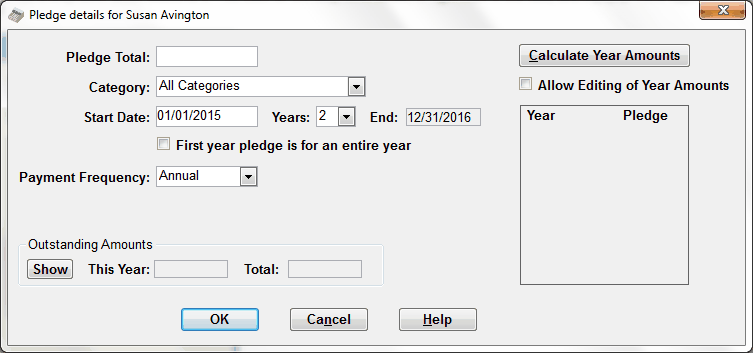
This window allows you to enter multi-year pledge information for the current donor. The following notes explain each field:
Pledge Total: This is the total amount the donor is pledging over the multi-year period.
If you ever wish to entirely clear out a donor's multi-year pledge that has been previously entered, clear the Pledge Total field, click OK, and answer the message box question that comes up appropriately, to allow all data on this window to be cleared.
Category: If a Category other than "All Categories" was selected on the Pledges tab of Maintenance ⇒ Main Window Options, it will be automatically filled in here, and this field will not be editable. (However, if it was previously saved with a different Category value, that value will be displayed and will be editable.) Otherwise, you can leave it as "All Categories" (in which case all donations, for whatever Donation Category, will be considered to fulfill the pledge). Or, you can change it to a specific category. If it is set to a specific category (either automatically or by the user), only donations that have that as their Donation Category will be considered to fulfill the pledge.
Start Date: The start date for the entire multi-year pledge period.
Years: The number of years in the multi-year pledge period (1 to 10). Normally if you are using this window for multi-year pledging, however, you would not set Years to 1. If you are only ever handling single-year pledges, use one of the other options on the Pledges tab of Maintenance ⇒ Main Window Options. The exception would be if you are running a multi-year pledge campaign, but the occasional donor gives you only a single-year pledge within that campaign.
End: A field that the program calculates, which is the end date of the pledge period, based on the Start Date, Years and "First year pledge is for an entire year" setting. The calculation will be explained fully below.
First year pledge is for an entire year: If this checkbox is checked, then whether the Start Date is the first day of a working year or not, it is treated as if it was, i.e. the End date will be a year end date, (Years - 1) years later. If this is unchecked, the End date is one day earlier than the Start Date, Years years later.
To give an example, suppose the Start Date is March 1, 2015, and Years is 5. If "First year pledge is for an entire year" is checked, the End date will be December 31, 2019. However, if it is unchecked, the End date will be February 29, 2020. (2020 is a leap year.)
An additional point is that if Year is set to 1 (a single-year pledge), or the Start Date is any day in the first month of the year, the End date is always calculated as if "First year pledge is for an entire year" was checked, regardless.
If you are in a country like the United Kingdom, Australia or New Zealand and you are Using Fiscal Data Entry and Receipting, and the Start Date is in a year that is a fiscal year, or any of the years included in the multi-year pledge period is a fiscal year, appropriate adjustments are made to the calculation of the End Date, and to the results of the Calculate Year Amounts button described below, using fiscal instead of calendar years for the calculations.
Payment Frequency: Allows you to select the frequency that the donor has specified they plan to make payments on this pledge - Monthly, Quarterly, Semi-Annual or Annual. This field is displayed on some of the Pledge reports. Other than that, however, this field is not particularly relevant. Pledge amounts are not entered in this window based on the frequency - you can only enter the total annual amounts on this window.
Calculate Year Amounts: Clicking this button calculates (or re-calculates) the amounts out of the Pledge Total that will be due in each year of the pledge period, and displays them in a table showing Year and Amount. The amounts may not always be exactly equal, because they are rounded to the nearest $1. In addition, if "First year pledge is for an entire year" is not checked, the first and last years will normally receive unequal shares, based on the proportions of a year (calendar or fiscal) that they each include.
Allow Editing of Year Amounts: If this is checked, after calculating the year by year pledge amounts with the Calculate Year Amounts button, you can further edit those amounts. This would be useful if the donor has informed you of specific unequal amounts that they plan to donate each year. However, if you edit the amounts, you must be careful to ensure that they still add up to the Pledge Total - you will not be able to save your changes on this window otherwise. If this checkbox is not checked, you cannot edit the Amounts in the table.
Individual year's amounts entered here can be $0, though of course the total pledge cannot be $0.
Show: Once you have entered all of the other fields, and done the Calculate Year Amounts, or at any point in the future when you re-enter this window for a donor with a pledge, you can click the Show button, and it will display both the outstanding amount (the pledge minus the amount donated to fulfill the pledge) for This Year, and the Total outstanding amount, for the entire pledge period. Note: in Canada when split receipting is used, the donation amount counted is the Eligible Amount, not the Total Amount. In all other cases and other countries, the amount is always the donation's Amount or Total Amount field.
The OK button saves your changes (after validating all of your entries), Cancel cancels any changes, and Help displays this help page.
After saving the changes with OK, the current year's pledge amount (not the total multi-year pledge amount! is redisplayed in the Donor Details area's Annual Pledge field, but that field is renamed to "Current Pledge".
IMPORTANT: After saving changes with OK on this window, your changes are not really saved unless you also click Save in the Donor Details area. Cancelling the changes in the Donor Details area will cancel the changes made in this window.
This topic was last edited on Mar 23, 2023