DONATION can memorize both most built-in reports, and Custom Reports (or ones built directly with the Database ⇒ SQL Select menu option), for later re-use.
Memorizing Reports
This is done with the Memorize button on the report-viewing window, or the Memorize Report button on the SQL Select window. When you use Memorize from the report-viewing window, it also memorizes any custom Sort or Filter you have added to the report. When you then re-run this memorized report, that same Sort and/or Filter will be automatically re-applied.
For built-in reports, memorizing the Sort and Filter is the main purpose of memorizing reports. And because of this, if a report does not allow for sorting or filtering, or you have not used either Sort or Filter, it will not allow itself to be memorized either, because there is nothing to gain from doing so.
For Custom Reports (or ones built directly with Database ⇒ SQL Select), the main purpose of memorizing them is to save having to re-create a custom report each time you use it. It also memorizes the selected Report Type (Normal or Grid), Orientation (Portrait or Landscape) and Report Title. And if you memorize such a report from the report-viewing window, again it also memorizes any custom Sort or Filter you have added.
When you memorize a report from the SQL Select window with the Memorize Report button, it first executes the SQL you have there, to make sure it is valid before saving it. If the report contains arguments for prompting for a date, range of dates, and/or a donation category, you will be prompted for sample values for those arguments as well, because without applying some arguments, it is not possible to tell whether your SQL is valid. Reports will not be memorized if the SQL is invalid, or it does not return any data.
Note: Any arguments that a report (custom or built-in) prompts you for will not be saved with the memorized report. You will be re-prompted for those arguments when you run the memorized report in the future.
Either Memorize button will prompt you for a name to save the report as. Enter a name that will help you remember what the report is for. The window looks like this:
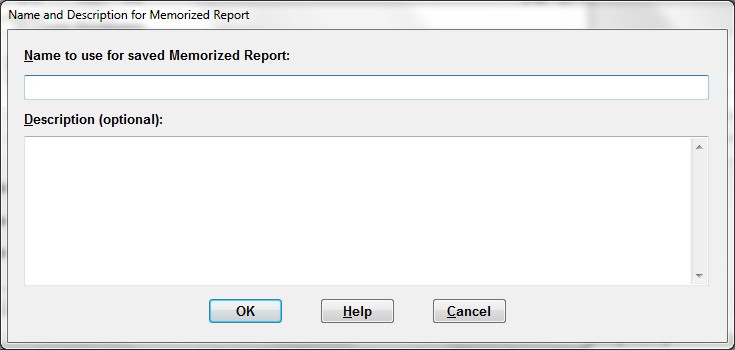
In some cases the Memorize button's Name and Description for Memorized Report window will show a suggested name. In particular, if you are replaying a previously memorized report, or have memorized the same report previously in the same session, the previously used name will be shown. For a previously memorized report with an existing Description, that will also be shown. If the report was not previously memorized, and the report has a title, a version of the title (with any characters that are illegal in filenames removed) will be used as the suggested name. You can of course change any suggested name to anything else that you want to use. One thing to be particularly careful of is not overwriting previously saved reports with a different report with the same name. The program does warn you if you are using the same name a second time, which gives you a chance to change your mind.
Re-running Memorized Reports
To re-run a previously memorized report, use the Reports ⇒ Memorized Reports menu option. That brings up the following window:
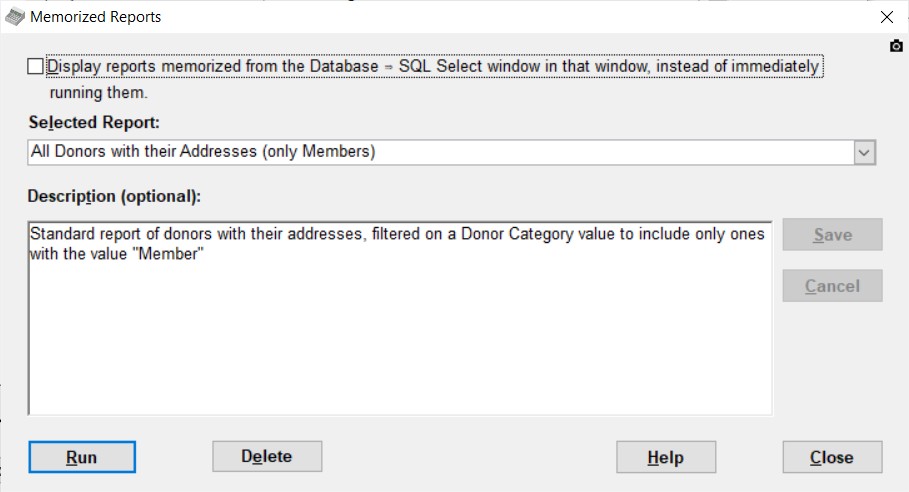
The normal usage is then to select the desired report from the Selected Report drop-down list, then click the default button, Run, or press Enter which does the same thing. As soon as you do that, any required arguments for the report will be prompted for, and then the report will be displayed in the normal report-viewing window. If it was saved with custom sorts or filters, they will also be executed.
If the report came from Custom Reports or the SQL Select window, rather than being a built-in report, and you wish to edit it further in the SQL Select window, check the checkbox at the top of this window ("Display reports memorized from the Database -> SQL Select window in that window ...") before selecting and running the report. It will then be displayed in that window, as you indicated. That would allow you to edit the SQL, Report Type, Orientation, and/or Title as desired before running it. (And if you do make changes, you might then want to re-memorize it, with the same or a different filename.)
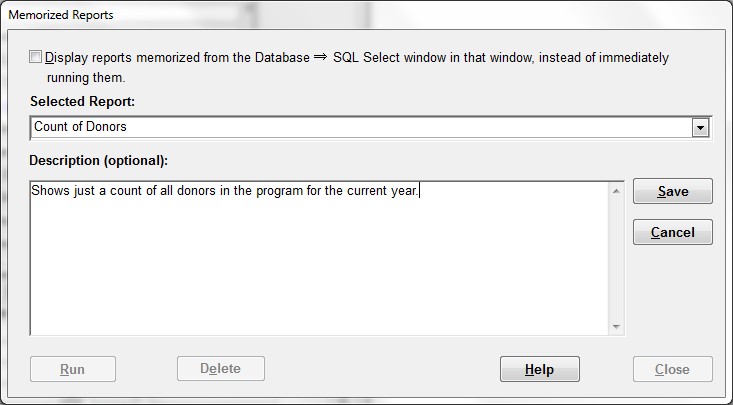
You can also edit the Description of any memorized report on this window. Just click into the Description area and start typing. As soon as you do that, the Save and Cancel buttons become enabled (not greyed out), and all other buttons (and closing the window), except for Help, become disabled. So you have to either Save your change, or Cancel it or press ESC (which goes back to the unedited version). Here's a sample of what that version of the window looks like:
When you are finished with a memorized report in the reports-viewing or SQL Select window, you will be returned back to this Memorized Reports window. You can then run another memorized report, or close this window with the Close button or ESC.
If you find that you have a report that you no longer need in this database, after selecting it from the Selected Report drop-down list, you can click Delete to delete it (after a confirmation).
If you enter the program with the Donors Only Password, the only reports displayed in the Selected Report drop--down list are ones that were memorized by a user who entered the program with the Donors Only Password.
Memorized Reports and Multiple Databases
If you have multiple databases for multiple organizations, and switch databases, your memorized reports are specific to each database. If you need the same memorized report in multiple databases, you will have to re-create and memorize it in each one.
Backing up and Restoring Memorized Reports
Unlike versions of DONATION prior to version 3.66, current versions of DONATION store memorized reports in the program's database, rather than as separate files on your hard drive. As a result, when the database is shared by multiple users (either with the Local Network Version of DONATION, or when you backup and restore the database between multiple computers) the memorized reports automatically come with it. There is nothing further you need to do.
Using Reports Scripts for Memorized Reports
You can run memorized with automated reports scripts. The RunMemorizedReport() command will be used, with the argument Name= and the name of the memorized report, as shown in the window for running them.
Additional arguments will match the arguments required for the built-in report that the report was memorized from, like DateRange= etc. if the report prompts for a range of dates. For Custom Reports, see here to learn about additional arguments.
This topic was last edited on Jun 6, 2023