There is a Filter button on the reports viewing window. What a filter does generally is restrict the rows displayed in a report, by specifying one or more conditions (called criteria), which the rows have to satisfy to still be displayed. It cannot change the data in any row - it can only determine which of the rows in the report are displayed!
So, for instance, if you do Reports ⇒ One Date Donation for a given date, you can't use the Filter feature to view the donation details for a different date. To do that, you would have to re-run the report. Similarly, if you do Reports ⇒ Donor ⇒ Donation Info ⇒ Sort by Name, you can't use a filter to restrict the report to only include donations to a certain donation category, because the donation category isn't one of the fields in the report. (Fortunately, you can do that via the selection criteria when you run that report, so a filter isn't needed!)
When you change the filter, part of the header of most reports will change to reflect the new filter you have specified. Please note however that each time you create a given report, it will be displayed with no filters. In other words, filters that you previously used on a report are not remembered the next time you run that report. The exception is if you memorize a report with filters, and then re-use it - see the details on that below.
It's very important to be aware that restricting the rows displayed in a report will mean that any totals in the report change. For instance, if you put a filter on a report showing each donor's donations for a range of dates, the displayed total donations amount will then be incorrect, since it includes only the amounts from the remaining rows of the report.
Filters can also be used for restricting data selected for mail merging with the Letters ⇒ Mass Mailing menu option. Although that is not exactly a report, the filtering concepts are the same. The rest of this Help topic will refer exclusively to reports, but everything applies in the same way to filtering mail merge data.
As of release 4.15 of DONATION this feature has been greatly simplified with a new Simple Filter window, described below. Prior to that only what is now called the Advanced Filter window was available. (A version of that is still available through the Advanced Filter button on the Simple Filter window, for those who are already comfortable using it, and for the few cases where you need complex criteria that cannot be done with a Simple Filter.)
There is a training video on Filtering Reports on the Demos and Samples web page, if you would prefer to see this feature demonstrated live, rather than reading about it.
As an example of filtering, suppose you want to see only individual donations over $1,000. You might start by running the Reports ⇒ Donation ⇒ All Donations ⇒ Sort by Name report. Then click the Filter button. (Do this as you are reading this page, so it will be easier to understand it!) The following window comes up:
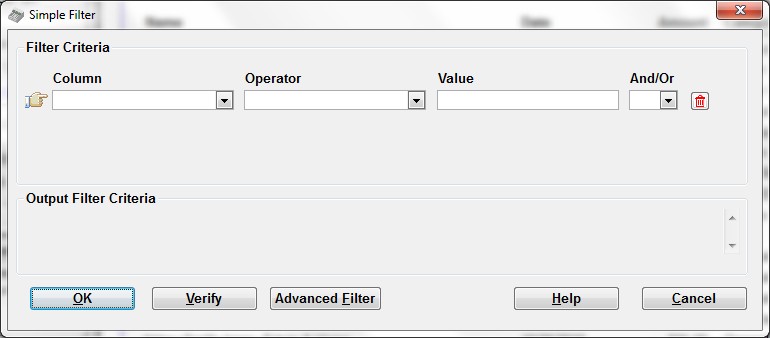
In this case, you want to filter on the Amount column, and the obvious guess is the column which is called "amount" in the drop-down list under the heading "Column". Select options from the first two column's drop-downs, and fill in the third column (the Value) so it looks as follows:
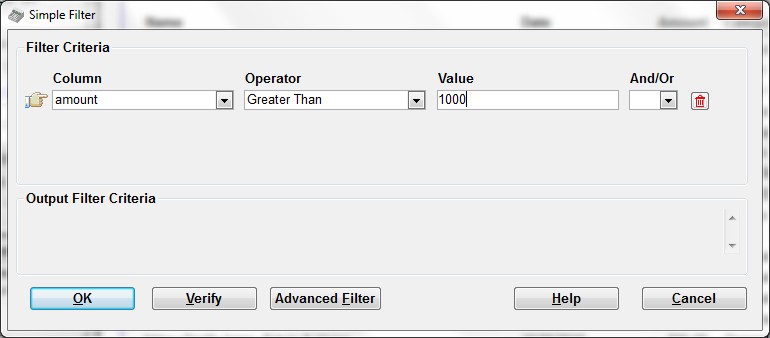
Note that for numeric values like the Amount, you don't need to enter dollar signs or commas in what you enter into the Value field. If you enter them, they will be ignored. You also don't have to enter cents.
If you like, you can click on the Verify button and it will tell you whether you have entered a valid filter. If that says the filter is OK, click on the OK button and it will apply that filter to your report. In this case, you would then only see the rows of the report where the amount is more than $1,000.
You will also notice after you either tab out of the Value column or click Verify, that a text version of the filter appears in the Output Filter Criteria area below the entry fields. That text version is actually what is used internally by the program. It is what you would have entered to get the same result in releases of DONATION prior to release 4.15, or could enter with the Advanced Filter button. For the case above, what you would see there would be:
(amount > 1000)
The Column Drop Down
The first column, called "Column", is a drop-down list of all of the internal names of filterable fields in the report, in alphabetical order. Please note that these are not always the same as the column headings on the report. They also aren't always the same as the field names you see when entering values on the program's main window or elsewhere. However, in almost all cases it should be quite clear which field is which.
The Member/Envelope number field is almost always called membernumber or member_number in the list of fields, if it is present in a report. Sometimes the donation category field will be called description.
If you aren't sure what a column name means, you can always try filtering on it and see what happens!
Some reports contain fields that can be filtered or sorted on, but aren't displayed in the report at all. For instance, in Reports ⇒ Donor ⇒ Mailing Labels, when you click Filter you will see that you can filter on category1 and category2 (the two Donor Category fields), other_info_1 through other_info_6, membernumber, email and total_amount (total amount donated this year, or in the selected range of dates). Although those additional fields are displayed in the Columns drop-down list, none of them are displayed on the actual mailing label! This lets you do things like print mailing labels for only people with a certain Donor Category 1 value, only people that don't have an email address, etc.
The Operator Drop Down
The following operators are available in this drop-down list:
Operator |
Meaning |
Equals |
Displays rows if the selected Column has the exact same value as the entered Value. |
Greater Than |
Displays rows if the selected Column has a larger value than the entered Value. Not available for date fields. For text fields, the comparisons are in "dictionary order", that is, as if all values being compared were upper case (explained further below). |
Later Than |
Displays rows if the date in the selected Column is later than (after) the entered Value. Only available for date fields. |
Less Than |
Displays rows if the selected Column has a smaller value than the entered Value. Not available for date fields. |
Earlier Than |
Displays rows if the date in the selected Column is earlier than (before) the entered Value. Only available for date fields. |
Greater Than or Equal To |
Displays rows if the selected Column has the exact same value, or a larger value, than the entered Value. Not available for date fields. |
Later Than or On |
Displays rows if the date in the selected Column is the same as or later than (after) the entered Value. Only available for date fields. |
Less Than or Equal To |
Displays rows if the selected Column has the exact same value, or a smaller value, than the entered Value. Not available for date fields. |
Early Than or On |
Displays rows if the date in the selected Column is the same as or earlier than (before) the entered Value. Only available for date fields. |
Not Equal To |
Displays rows if the selected Column has a different value from the entered Value. |
Like |
Displays rows where the selected Column's value matches the wildcard in the entered Value (explained below). Only available for text fields, not numbers or dates. |
Not Like |
Displays rows where the selected Column's value does not match the wildcard in the entered Value (explained below). Only available for text fields, not numbers or dates. |
Is Empty |
Displays rows where the selected Column has no value. With this operator, you do not enter a Value, because it is not relevant. |
Is Not Empty |
Displays rows where the selected Column has a value - any value. With this operator, you do not enter a Value, because it is not relevant. |
In |
The Value column in this case must be a list of two or more values, separated by commas. (The commas can have spaces before or after them, but that is not required.) Displays rows where the selected Column's value is equal to any one of those comma-separated values, but nothing else. |
Not In |
The Value column in this case must be a list of two or more values, separated by commas. Displays rows where the selected Column's value is anything other than one of those comma-separated values. |
Between |
The Value in this case must be two values, separated by " and " (the word "and", with at least one space on either side). Displays rows where the selected Column's value is at least the first of those values (the one before the " and ") and no more than the second of those values (the one after the " and "). This is largely the same as using two conditions, the first using Greater Than or Equal To (or Later Than or On for dates), and the second using Less Than or Equal To (or Earlier Than or On for dates), except that it does not use dictionary order for text fields. |
Dictionary Order
When text fields are compared with Greater Than, Greater Than or Equal To, Less Than, or Less Than or Equal To, there is a slightly complex behaviour about how it deals with upper and lower case, and characters that aren't letters. (This behaviour, and its name, come from the program we use to create DONATION with, and thus we cannot change it.) It is similar to, but not quite identical to, saying that the comparisons are case-insensitive.
What happens is that upper and lower case are ignored - the same way you would ignore them if you were looking up words in a dictionary. In other words, all comparisons are as if both the Column's value and the entered Value were converted to upper case before comparing them.
In addition, all characters other than letters, such as numbers and punctuation symbols, are considered to come before all letters in the dictionary order - to be Less Than them. (That part is different from ASCII order, for those who are familiar with that.)
All other comparison operators when comparing text fields (Equals, Not Equals, Like, Not Like, In, Not In, and Between) are case-sensitive - the upper or lower case of the Value field you enter must match that of the data for the filter condition to be considered to be true.
Wildcards for Like and Not Like
To search for values anywhere in a text field, you use the Like operator, and percent signs. For instance, suppose you wanted to find addresses in Texas, and figured that you would find them if "TX" was somewhere in addr2 in a report, such as Reports ⇒ Donor ⇒ Mailing Labels. To do that you would fill in the fields as follows (shown as a text table representing the main area of the Simple Filter window in the images above):
Column |
Operator |
Value |
And/Or |
addr2 |
Like |
%TX% |
Basically what the "%" means is "anything", that is any number (0 or more) of any characters. So that condition would mean that the Address Line 2 contains TX anywhere within it, including right at the start or right at the end, regardless of what else is in the Column's value.
There is one other wildcard character, the underbar, "_". It matches exactly one character - any one character. This would be much less commonly used than the percent sign.
The Value
You enter whatever you are comparing the Column's value to, based on the selected Operator, in the Value column. As mentioned in the table of Operators above, the only exception to this is Is Empty or Is Not Empty, where the Value must be omitted.
As mentioned above, numeric values like amounts should not include dollar signs or commas, and they will just be ignored if they are entered.
Do not include quotation marks (single or double) around text values you are comparing things to. (In fact, your filter will be rejected if you enter any quotes, including an apostrophe - which is a single quote - in the Value.) Quotes are added back in for you as needed to the actual technical filter criteria that the program will use internally, which are shown in the Output Filter Criteria area on the window.
Do not include round brackets around your comma-separated list of items for the In or Not In operators.
Dates in the Value column must be a valid date in your current Short Date Format from Control Panel's Regional and Language Options tool (the same as you can enter in date fields in the program when doing data entry), or they can be in the exact format YYYY-MM-DD, such as 2019-01-01 or 2019-12-31. Dates entered in your Short Date Format will be reformatted in the YYYY-MM-DD format in the Output Filter Criteria area.
An example of using Between would be:
Column |
Operator |
Value |
And/Or |
amount |
Between |
100 and 200 |
An example of using In (to choose any one of three values in this case) would be:
Column |
Operator |
Value |
And/Or |
category |
In |
General,Building,Library |
The And/Or Value
If you need multiple conditions in your filter, they must be joined by either "And" or "Or" in this column of the window. "And" means that for rows to be displayed, they must match the conditions on all of the rows. "Or" means that for rows to be displayed, they must match the conditions on any one of the rows.
Do not fill in the "And/Or" value on your last row, or if you only have one row.
To avoid confusion about the meaning, if you have three or more rows, you must either use "And" on all of the rows prior to the last one, or use "Or" on all of the rows prior to the last one. You cannot have some rows with "And" and others with "Or".
If you need to mix "And" and "Or" values, you would set up your criteria using all "And" or all "Or", then click the Advanced Filter button to further edit the resulting text version of the criteria, to change the And/Or values and insert appropriate parentheses (round brackets) for grouping. An example is in the Advanced Filter help topic.
As an example of using one of these values, let's go back to finding addresses in Texas (with "TX" in the address). If we are aware that it could be either addr2 or addr3, we would change the criteria to:
Column |
Operator |
Value |
And/Or |
addr2 |
Like |
%TX% |
Or |
addr3 |
Like |
%TX% |
Managing Multiple Rows of Criteria
As soon as you set the And/Or value to either "And" or "Or", another row will appear below that row for further criteria.
If you have entered a row and no longer want it, you can click the red trash can icon to the right of the row to delete it. If you delete the only row, it will be replaced by a new empty row.
Changing a filter to have only the one empty row then clicking OK will remove the filter from the report.
The Buttons on the Window
The OK button first verifies that your filter is valid, then if so, applies it to your report. If it is not valid, you will receive one or more error messages that hopefully will help you fix the filter so that it can work.
The Verify button only verifies that your filter is valid, giving appropriate messages, but does not yet apply it to the report.
The Help button displays this Help topic.
The Cancel button, or pressing ESC, cancels creating or editing a filter for the report.
The Advanced Filter button takes your currently defined filter as displayed in the Output Filter Criteria area, if any, and moves it into a more technical filter window for further editing, in case you need something that cannot be done within the capabilities of this simple filter window. It is described in more details in the Advanced Filter help topic.
Other Areas of this Window
The Output Filter Criteria area below the criteria you enter displays the actual text of the filter you are creating with the simple filter fields in the middle of this window. It shows that in the more technical Advanced Filter format. It is updated for a complete row each time you click out of one field into the next field, or if you click Verify.
There is an additional area that can appear at the top of the window, labelled Input Filter Criteria. It comes up in the case where you are re-doing a filter on a report that has an Advanced Filter, which can either be one you created in the Advanced Filter window, or one saved in a Memorized Report in an earlier release of DONATION that did not have the Simple Filter window. Here is an example from clicking Filter on a previously memorized report:
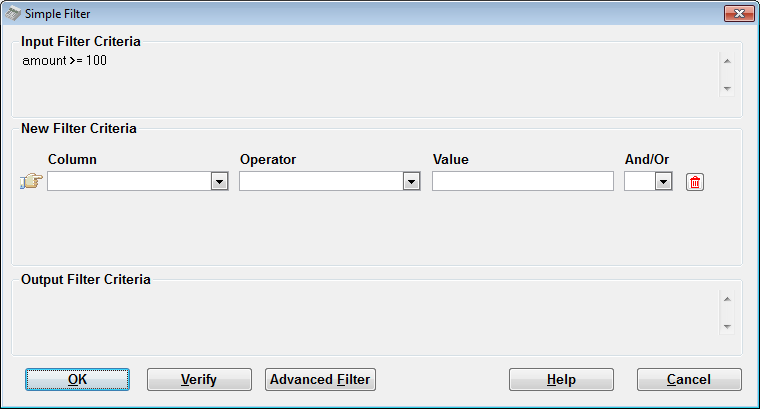
As you can see, it is pretty clear that what was done before could be re-done as a Simple Filter. If you wanted to re-save the report with a Simple Filter doing the same thing, you would just enter the following criteria:
Column |
Operator |
Value |
And/Or |
amount |
Greater Than or Equal To |
100 |
then click OK. Then in the displayed report, click Memorize to re-memorize it for future use.
The Advanced Filter Window
If you are already familiar with filtering by typing plain-text filters, from prior releases of DONATION, or if you encounter something that does not seem to be able to be done with a Simple Filter, you can click Advanced Filter to go to the new window for that. Please see the Advanced Filter window for details and examples.
Memorizing Filtered Reports
Particularly if you want to be able to re-run the same report in the future with the same or a similar filter, you may want to memorize it for re-use with the Memorize button. That will also memorize any Sort you have added, in addition to the Filter. You can then re-run the memorized report with Reports ⇒ Memorized Reports.
Filters and the Sort Order
If you put a filter on a report, then while you are still viewing the same report, change or remove that filter in a way that returns some of the previously filtered out rows back to the report, a somewhat surprising thing can occasionally happen.
Specifically, those rows that return to the report because they are no longer filtered out may appear below all of the other rows that were already there. That will mean that if that report started with a specific sort order, as most do, it would no longer be sorted appropriately. To fix that, you would have to use the Sort button to re-sort the report into the desired order. See Sorting Reports for details on doing that.
Fortunately, we have set up most of the built-in reports to already prevent this potential problem. The most likely case where you could see this problem is with Custom Reports, or some reports Memorized before the release that included the Simple Filter window.
Reports with Multiple Sections
Some reports, such as Reports ⇒ One Date Donation, have (or can have) multiple sections. Some of those reports cannot be filtered at all, for technical reasons. Either the Filter button will be disabled (greyed out) for such reports, or if you click Filter on them you will be given a message explaining that.
Others of those reports, such as if you pick both the Details section and Summary section of the one mentioned in the previous paragraph, allow filtering, but the filter you define will only apply to the first section of the report (in this case, the Details part). Any further sections (in this case, the Summary part) will be unchanged by the filter. In such cases, you will receive a message informing you of that.
Other reports with multiple sections, like Reports ⇒ Donation ⇒ Details, One Page per Donor, have unexpected behaviour when you try to filter them, though it actually does work correctly on that report. That report has two sections per page, the first showing the detailed donations for each donor, the second showing the category totals of donations for each donor. If you use Filter, the only field names that show up are donor fields: full_name, reversed_name, the two donor category fields, and the email address. What this means is that the most basic database selection controlling this report is selecting only the donors, not the donation details, and using Filter cannot filter out the donations within each donor. It can only filter out which donors the report is generated for.
This topic was last edited on Feb 17, 2023