There is a Sort button on the reports viewing window. This option allows you to change the order of the data displayed on the report, if you want to see it in another order.
Sorts can also be used for re-ordering data selected for mail merging with the Letters ⇒ Mass Mailing menu option. Although that is not exactly a report, the sorting concepts are the same. The rest of this Help topic will refer exclusively to reports, but everything applies in the same way to Sorting mail merge data.
As an example, suppose you want to list donations in descending order by amount. You might start by creating the Reports ⇒ Donation ⇒ All Donations ⇒ Sort by Name report. (There is actually a built-in version of this report sorted by Amount, but for the purposes of this explanation we are getting at the same thing in a different way!)
Now click the Sort button. (Do this as you are reading this page, so it will be easier to understand it!)
You will now see the following window, called Specify Sort Columns:
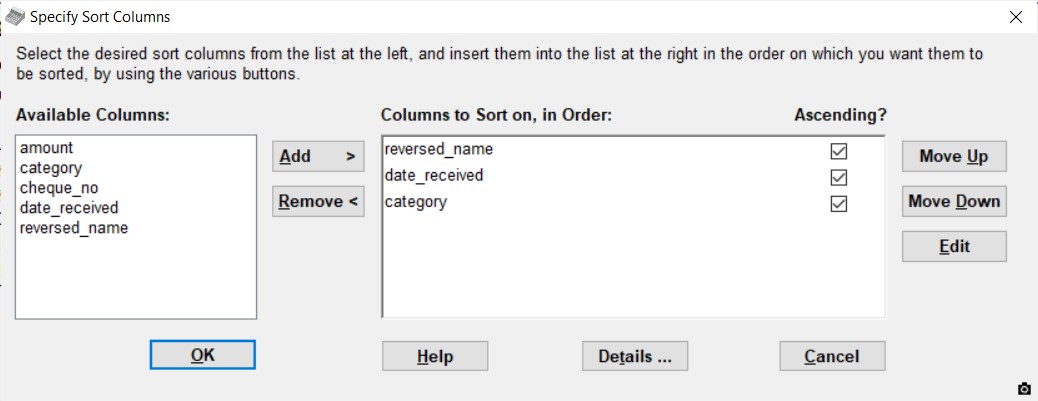
Instructions are written at the top of the window, as you can see in the image above. The box at the left labelled "Available Columns" contains the names of all of the fields (also called columns) on the report that you can sort on. While the names displayed won't exactly match the column headings on the report, you should be able to easily figure out which is which, for almost all reports. (If you aren't sure what a column name means, you can always try sorting on it and see what happens!)
Some reports contain fields that can be filtered or sorted on, but aren't displayed in the report at all. For instance, in Reports ⇒ Donor ⇒ Mailing Labels, when you click Sort you will see that you can sort on category1 and category2 (the two Donor Category fields), other_info_1 through other_info_6, membernumber, email and total_amount (total amount donated this year, or in the selected range of dates). Although those additional fields are displayed in the "Available Columns" box, none of them are displayed on the actual mailing label! Realistically, those non-displayed columns are more likely to be of interest to you for filtering than for sorting.
With some reports, when you click Sort you will also get a message box, warning you that the report has group breaks, and that changing the sort order could cause problems. What can happen with inappropriate changes to the sort order in such reports is that groups get repeated, because not all lines of the report that should be in the same group are sorted together.
In some reports you may see technical column names like internal_donornum or soundex, that the report shows as already being sorted on in the box at the right, "Columns to sort on, in Order". Those are special internal columns in the data of the report that that specific report is sorted on, and in most cases you should not change that or the report could be seriously messed up!
As mentioned, the box at the right, labelled "Columns to Sort on, in Order", shows the current sort order for the report, and is where you put column names to specify that order.
Although most reports are sorted, the current sort order may in some cases not already be displayed in the box on the right when you bring up this sort window for the first time for a given report. That's for technical reasons, which are a bit hard to explain. (Likely the only case where you will see this is with Custom Reports.) In such cases, it should be pretty easy to see what the current sort order is, by looking at the report before you click Sort.
In the example described above, you want to sort on the Amount column, and the obvious guess is a column called "amount". You can get it to the box on the right either by double-clicking on it, or clicking on it to select it and then clicking the Add button. That will put it below any existing columns there, in this case the "name" and "date_received" columns. To move it up to the top, so it is the highest priority for sorting, click the Move Up button three times.
The Move Up and Move Down buttons will move a selected item in the "Columns to Sort on" box up or down to specify the sorting priority.
When multiple columns are in the "Columns to sort on" box, as in the example above, it first sorts by the first column listed, and then it only sorts on the 2nd column listed if the values in the 1st column are the same, and similarly for further columns. For instance, suppose you have sorted on "amount", "name" and "date_received" as in this example. The report will mostly be sorted on the amount, but if there are two donations for $1,000, then those two will be sorted by the donor's name, and if there are two with the same amount and same name, they will be sorted in order of date_received.
You will also see a checkbox to the right of where the name appears, labelled "Ascending?", which is checked. You want to see it in descending order (from the highest down to the lowest Amount), so click that checkbox to uncheck it. Now click on the OK button and it will sort your report in the order you wanted.
You can remove a column from the sort by moving it out of the "Columns to Sort On" box, by either double-clicking it in that box, or clicking on it to select it then clicking Remove. (The columns in the "Available Columns" box never change - they are always all displayed.)
Please note that if you remove all of the sort columns, the report won't necessarily go back to its original order. In fact, if you do that then press OK, the report will not change at all. To get back to that original order, Close the report and run it again from the Reports menu. Each time you create this report, it will be displayed in its original order. Your sort order from a previous run is not remembered - but see the section below about Memorizing Sorted Reports for how you can do that.
Some reports may not work properly with arbitrary Sort orders. For those reports, the Sort button is disabled.
When you change the sort order, part of the header of most reports will change to reflect the new order you have chosen. The only exception to this is if you also change the filter (see Filtering Reports), in which case the revised filter criteria will show in the header instead.
The Details Button
Clicking the Details ... button in this window displays the technical sort expression that will be used internally in the program to make this sort happen, and it also copies that to your Windows clipboard, so that it could be pasted somewhere else with Ctrl+V. This is only needed for one purpose: to find out a correct sort order expressing for a SortReport command in an automated reports script.
Complex Expressions for Sorting
You can actually edit columns that you are sorting on, to change them into complex expressions that do something tricky. Here are a couple of examples explained in detail.
If you want to sort a report on the Member/Envelope number, not all donors have such numbers. So if you just sort on that field, everyone without a Member/Envelope number will appear first in the report, followed by everyone with such a number, in order by that number. That's probably not what you want - you would prefer everyone with a number first. While many built-in reports that sort on that field already have the fix described below built in, the following instructions can be used if it is not built in, such as if you are building a Custom Report using that field.
Let's use the example of Reports ⇒ Donor ⇒ Mailing Labels with Member/Envelope #, running it for all donors. Its built-in sort is only on the reversed_name field (such as "Smith, John").
If we do want to instead sort those mailing labels first on the Member/Envelope #, with all donors with such numbers coming first, do as follows. First, in the Sort window, make sure the column named "membernumber" (or whatever it is named in the report you are using) is in the "Columns to Sort on" box. You will want it to be the top column name if there are other columns in that box. Then, click on it there to select it, and click Edit. After you answer a question to confirm you want to do that editing, the program will bring up a Specify Sort Expression window such as the following (in the report mentioned above).
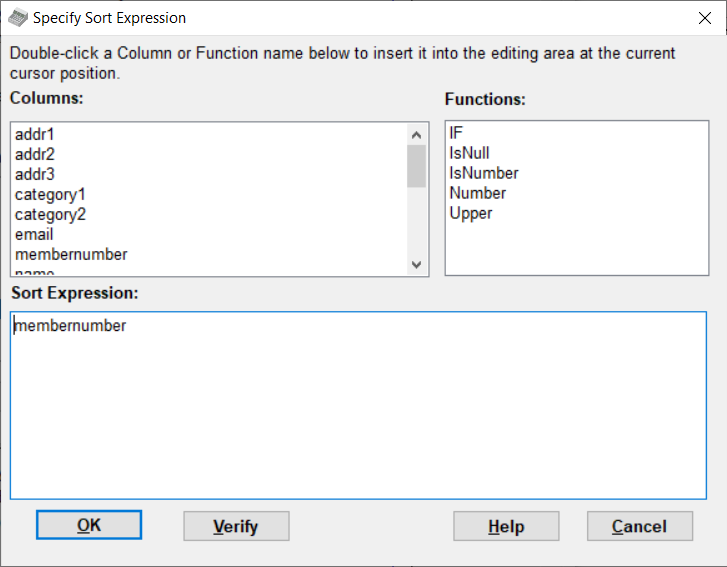
You will see "membernumber" (without the quotes) in the Sort Expression box at the bottom. Change that to:
IF ( IsNull ( membernumber ), 999999999, membernumber )
(None of the spaces are required, they are just for clarity.)
More instructions for using this window, including the meanings of the Functions in the top-right box, are in the Help on the Advanced Filter window, but you can always just type what you want.
Once you have made your change, you can click Verify if you want, to check whether it is a valid expression. (Unfortunately, not all expressions that the program will allow are actually sensible sort orders!)
Then click OK to go back to the main sort window, where you will see your expression displayed. (It also verifies when you click OK, and doesn't let you exit this editing window if it isn't valid.) Click OK again to apply the new sort. That forces all of the rows with no Member/Envelope number to be treated as if they had the number 999999999 and thus come out at the bottom of the report, and all of the rows with a number to come out at the top, in order. If further sort orders were included after this one, the rows without a number would be sorted in those additional orders. If all of your donors have Member/Envelope numbers, or you don't mind if those without one to sort to the top, you can just let the sort be on the membernumber column itself instead.
One function used in the example above but not described in the Help on the Advanced Filter window, because it is very unlikely to be needed there, is "IF". An expression such as:
IF (condition, value1, value2)
requires that the condition part be something that is true or false. If it is true, the result of the entire expression is value1. If it is false, the result of the entire expression is value2. Each of condition, value1 and value2 can themselves be expressions - the condition pretty much has to be.
A 2nd example that required using complex sort expressions came to us from a user who wanted a report that was sorted by donation categories to show the category "Tithes and Offerings" first, before all other categories. To do that, we had them sort on the category field, then double-click on it to get to the Specify Sort Expression window, and enter the following expression:
IF ( category = "Tithes and Offerings", "", category )
That sorts "Tithes and Offerings" as if it was nothing (and thus sorts it to the top) and sorts everything else normally by its category value.
Memorizing Sorted Reports
Particularly if you will want to re-run the same report in the future with the same sort, you may want to memorize it for re-use with the Memorize button. That will also memorize any Filter you have added. You can then re-run the memorized report with Reports ⇒ Memorized Reports.
This topic was last edited on Feb 17, 2023