The Envelopes options under Reports ⇒ Receipt and Reports ⇒ Donor allow you to print or view standard #10 envelopes for all receipts generated on a given date, or for all or selected donors. You could use this option for receipts after creating them for All Donors at the year-end (or any other time you use Receipt ⇒ All Donors).
Note: You can also create mailing labels for receipts or donors.
The Reports ⇒ Donor ⇒ Envelopes report prompts you with the following window:
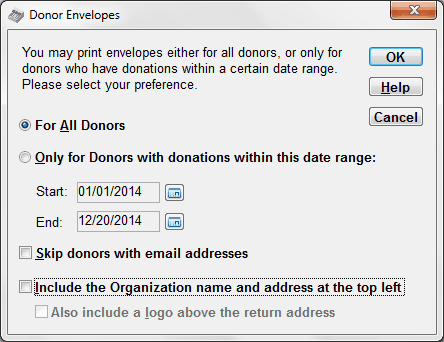
This allows you to either create envelopes for all donors or for donors who have donations in a range of dates that you can specify. The latter option is valuable if you are creating envelopes to send out mailings created with Reports ⇒ Donation ⇒ Details, One Page per Donor or Category Totals, One Page per Donor, or with Letters ⇒ Mass Mailing, using the Individual Donations Information or Total Donations Information options. That is because all of those only include donors with donations within a specified range of dates, so you would only want donor envelopes for those same donors.
Checking the "Skip donors with email addresses" checkbox allows you to omit any donors who have email addresses from the batch of labels that you are creating. That would be useful if those donors had already been sent something by email, and you only wanted to use postal mail for the other donors, who don't have email addresses.
By using the two checkboxes at the bottom of this window, you can create a return address section at the top left corner of your envelopes, if you don't have pre-printed envelopes for your organization. The first checkbox determines whether your organization name and address (from Maintenance ⇒ Organization Info) are included. If that is checked, the second checkbox is available, which determines whether your logo is also included, above the organization name and address. (You can't include only a logo with no name and address.) The logo is the same file and size (150 x 60 pixels) as for the built-in receipts - please read that section for details.
The Reports ⇒ Receipt ⇒ Envelopes report prompts you with the following window:
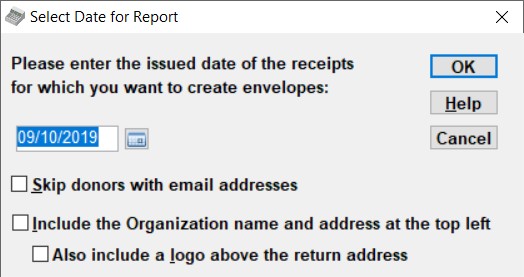
As you can see, it first asks for the date on which the receipts were issued. That is the Date or Issued Date printed on the receipts. If you aren't sure of the date, and don't have the receipts in front of you to look for the date printed on them, you can look them up with the Reports ⇒ Receipt ⇒ All Receipts report. Envelopes will be printed for all donors for whom receipts were issued on that specified date.
The date displayed initially will be the last date on which you issued receipts in the current working year.
The window also allows you to specify that you want to skip creating the envelopes for donors who have an email address. (Those donors might have had their receipts sent by email, and thus wouldn't need an envelope.)
Finally, this window also has the same two checkboxes for the return address and logo as described above for the donor envelopes.
Filtering Envelopes
The donor envelope report has several extra fields in it that aren't displayed, for use in sorting or filtering, including the two Donor Category fields, the six Other Info fields, the Email address field and a Total Amount donated this year field. The receipt envelope report has the Email address field as an extra field. You can use them with the Filter button to print only selected envelopes based on a category or other information.
The simplest example of using this would be to just print an envelope for one donor. To do that, after the envelopes report has been displayed, click Filter, and enter the following Filter expression, using the appropriate name in the value field:
Column |
Operator |
Value |
And/Or |
name |
Equals |
Firstname Lastname |
Click OK on the filter window, and only the one label matching that name will be displayed.
Another example is printing donor envelopes for only those "donors" who have not yet donated anything this year. After the envelopes report has been displayed (with "For All Donors" selected), click Filter, and enter the following Filter expression:
Column |
Operator |
Value |
And/Or |
total_amount |
Equals |
0 |
Click OK on the filter window, and the envelopes will then be restricted to those for donors who have not yet donated anything this year.
This topic was last edited on Mar 23, 2023