You can save your report to one of a number of file formats with the Save As button: tab-separated Text, CSV (comma-separated Value), Excel, HTML and PDF. Some of the options yield a file which looks either somewhat like or very much like the original report; others just export raw data from the report.
When you click Save As, the following window comes up:
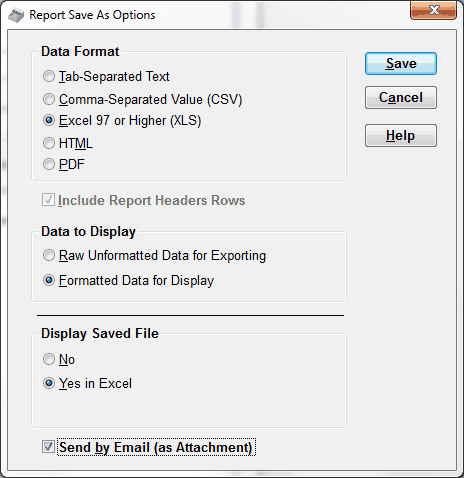
The following sections of this page explain the sections and options on this window:
Data Format
Here you choose between Text, CSV, Excel, HTML and PDF. Which one of these you choose can affect which of the options in the other sections are available, and in some cases the wording of the options in those other sections. Details will be described below.
For exporting raw data, for example for importing into another program, you use the Text, CSV or Excel options, with the "Raw Unformatted Data for Exporting" selection under Data to Display.
For display (to be able to see something very much like the report on screen), you use the Excel, HTML or PDF options, with the "Formatted Data for Display" selection under Data to Display.
There are a few reports in the program that for technical reasons cannot be exported to Text, CSV, Excel (with "Raw Unformatted Data for Exporting" selected) or HTML. If you click Save As when you are viewing one of those reports, those options will be disabled. You will still be able to export those reports to Excel (with "Formatted Data for Display" selected) or PDF. With a few other reports, only parts of the report will be exported when you select Text, CSV, Excel (with "Raw Unformatted Data for Exporting" selected) or HTML.
Include Report Headers Rows / Include Column Headers Row
The text of this checkbox changes depending on whether the Data to Display is set to "Raw Unformatted Data for Exporting" or "Formatted Data for Display". It is only in the former case that you have an option here - with "Formatted Data for Display", this is always checked, and it is disabled (greyed out) as seen in the above screen shot.
Data to Display
For the Data Formats Text and CSV, only "Raw Unformatted Data for Exporting" is available. For the Data Formats HTML and PDF, only "Formatted Data for Display" is available. It is only with the Data Format Excel that you have a choice, of Raw or Formatted data.
With the Raw selection, all data from each record will be across one row, regardless of the formatting of the original report on the screen. Totals will not be included. Numbers will not be formatted (for example you will see "1000.00" rather than "$1,000.00"). And if there are extra columns included in the report for filtering or sorting purposes that aren't displayed as part of the report, they will also be exported. Column headers (if you include them by checking the "Include Column Headers Row" checkbox may not read exactly as they do on the report.
With the Formatted selection, the report will display exactly (or almost exactly!) as it does on the screen or on the printed page, to the extent that it is possible with the given format, and the technology being used to save it to that format. One problem that has been observed with saving to Formatted Excel is that the result can end up wider than it should be, so that the report spreads onto two pages horizontally instead of one.
Display Saved File
You may or may not wish to display the saved file in an appropriate program after saving it. In this section, you can choose between "No", and "Yes in some program". Here, "some program" is replaced by options for one or two programs, depending on the Data Format you selected. Text files can be displayed in Notepad (which is a very simple text file editor). CSV files can be displayed in Excel or Notepad. Excel files can only be displayed in Excel. HTML files can be displayed in your default web browser (such as Internet Explorer) or in Excel, though usually saving them as Excel will work better for that. And PDF files will be displayed in your default PDF viewer (usually Adobe Reader).
Note: If you select "Yes in Excel", and you don't have Microsoft Excel installed on your computer but you have another program installed that is set up to open Excel files (such as Open Office), the saved file will open in that other program instead. In fact, if you have the free open source office suite Open Office installed rather than Excel, it will automatically be used (whether or not it is specially set up to open Excel files).
Send by Email (as Attachment)
If you check this checkbox, after the file is saved, and displayed (if you chose a "Yes" option under Display Saved File), a window comes up that allows you to email the file to anyone you wish, as an attachment. This requires that your Email Sending Configuration has been configured, using the Maintenance ⇒ Email Sending Configuration menu option.
See the page on Sending Emails to a Donor for a sample of the window used for sending the email. You can change the To name and email address, the Subject line, and the Body of the email, but not the Attachment - it will always be the file you just saved. You also have the option of Cc-ing or Bcc-ing the email to yourself, if you are sending to someone else. Whatever you use as the To name and email address, Subject and Body will be saved and redisplayed for your use the next time you send an email via this window, so that if you are normally sending the same report to the same person, you shouldn't have to re-write the email you send it with!
The To Email can include multiple email addresses separated by semicolons, such as "john@gmail.com;mary@gmail.com", without the quotes. If you do that, a single email will get sent, with both addresses on the "To" line.
Action Buttons
Clicking Save first brings up a window in which you can select the directory in which you wish to save the file, and the filename. It then does the save of the file as specified in the various options, and optionally displays the file in an appropriate program as specified under Display Saved File, and optionally brings up the window for you to email the file if you checked that option.
Clicking Cancel closes this window. Clicking Help brings up this help page.
Uses of Save As
The most common uses are to provide exported data from a report to someone else, for importing into another program, or to send someone a viewable version of a report.
Another use of Save As is for doing your own mail merges, instead of using the built-in mail merge facilities in the program.
Another thing you might want to do with Save As is to create limited versions of reports provided by this program. For instance, suppose you wanted a report listing only Member #, Last Name, and First Name. Find a report that includes that data (and more) such as Reports ⇒ Donor ⇒ Donation Info ⇒ Sort by Member/Envelope #. Run the report, then do the Save As, and save it in the Excel format. (I will assume you have Microsoft Excel.) Use the option to have it open the saved file in Excel, then delete the columns that you aren't interested in. Make any other desired changes (such as fixing up column widths and column headings), then print it.
However, this is usually not necessary, because you can create reports with just the fields that you want in them using the Reports ⇒ Custom Report menu option.
Error Messages on Save As
You may receive an error message if a Save As fails. Unfortunately the program is not able to determine why it failed, so the error message mentions a few possibilities.
The most likely possibility is if you selected to save the file in a directory to which non-administrative users in Windows don't have write access, such as a directory under C:\Program Files.
Save As versus Save PDF
The report-viewing window also has a Save PDF button. It does basically the same thing as using the PDF Data Format option on this window, except it always displays the file in your default PDF viewer program after creating it, and it does not give you an option to email the file as an attachment.
Issues with Save As to Formatted Excel
Some aspects of some reports in DONATION may not come up properly when you save to Excel. Unfortunately, the saving to Excel is done by a 3rd-party program that we purchased, which has a number of bugs that the vendor is not fixing, and would be extremely difficult to replace with our own code that worked better. In some cases there could also be missing data in the exported Excel files. You will have to carefully check any reports exported to formatted Excel before you use them. If you encounter any reports where the save the formatted Excel has missing data, please contact us immediately with full details, so we can try to fix that report.
This topic was last edited on Jul 30, 2022