A few places in the program need to send an email to Software4Nonprofits.com. Two of those places are related to software licensing, and are for requesting a License Key for your organization, or requesting an Evaluation Extension (for longer than the normal 60-day evaluation period plus grace period).
(Other email sending in the program, such as for emailed backups and emails to donors, is based on the settings set up with Maintenance ⇒ Email sending Configuration.)
When you use either of those licensing options mentioned above, a window such as the following comes up:
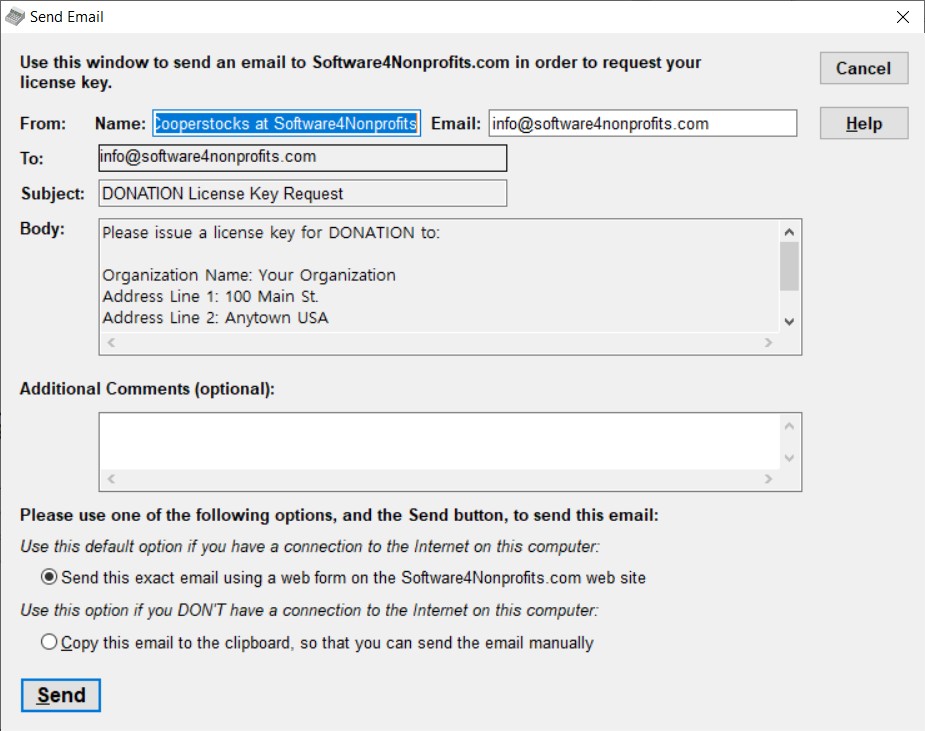
The Subject line and Body of the email will already have been filled in for you with the required contents, and are not editable.
Note: one of the things that is displayed in the Body of a license key request is your Organization Name, as taken from Maintenance ⇒ Organization Info. If that is not exactly the way you want it to appear on your receipts, you must first go back and change it in Maintenance ⇒ Organization Info before you make a license key request, because the license key needs to correspond exactly to your Organization Name, both in the spelling and in the capitalization.
When you are using this window to send an evaluation extension request, the optional Additional Comments field shown above is changed to a required Reason for Request field, so that you can inform us of why you need the extension.
When you are using this window to send your Registration information, the Subject and Body fields are not editable - they are determined by what you put into the Registration window. And there is also no Comments or Reason for Request section.
There are two options for how to send the email:
1.If you have an Internet connection on your computer: Use the default radio button option, "Send this exact email using a web form on the Software4Nonprofits.com web site" (which is already selected for you), and click Send. That will invisibly send the contents of the email to a form on the Software4Nonprofits.com web site, which in turn actually sends a real email to us.
For this option, you also need to fill in the From Name and Email, at the top of the "Send Email" window, changing them from the default values ("Your Name" and "YourEmail@Address.com") that may come up when the window opens. However, it will re-use any previously used From Name and Email address. If this window hasn't been used before, the program tries to determine your Name and Email address from an Outlook, Outlook Express or Thunderbird profile if you use one of those email programs.
Note: The email request will not appear in your email program's Sent Mail folder after you send it this way.
2.If you DO NOT have an Internet connection on your computer, or the Send in the previous step fails for any reason: In this case, you will have to send the email more manually. Select the radio button "Copy this email to the clipboard, so that you can send the email manually", then click Send. (You don't have to fill in the From Name and Email for this option.)
What this does is put the contents of the email into the clipboard (the place Windows uses for doing Copy and Paste). After this, please follow one of these two sets of steps to send the email:
a) If you do have Internet access on this computer, and the Send in Step 1 above just failed:
•Open up your email program, or connect to your web-based email (like Hotmail, Gmail or Yahoo mail), and start a new email.
•Paste the email from the clipboard into the body of your new email by pressing Ctrl+V (hold down Ctrl and press V) or using the Edit ⇒ Paste menu option in your email program.
•The email that you have pasted in includes the To: address and the Subject line. Copy those out of the body of the email into the appropriate places in your email that you are sending.
•Send the email.
b) If you do not have Internet access on this computer:
•Open up any program that you can save a text file in, such as Word or Notepad, on your computer.
•Paste the email that is on the clipboard into that program, by pressing Ctrl+V (i.e. hold down Ctrl and press V) or using the Edit ⇒ Paste menu option in that program.
•Save that into a file (say, Email.doc, if you are using Word).
•Copy that file onto something that you can take to another computer that does have an Internet connection, such as a USB memory key.
•On the other computer that has the Internet connection, open up that file from the USB memory key.
•Highlight the contents of the email with your mouse, then press Ctrl+C or use the Edit ⇒ Copy menu option to copy it to the clipboard.
•Open up your email program, or connect to your web-based email (like Hotmail, Gmail or Yahoo mail), and start a new email.
•Paste the email from the clipboard into the body of the email that you have started, by pressing Ctrl+V or using the Edit ⇒ Paste menu option.
•The email that you have pasted in includes the To: address and the Subject line. Copy those out of the body of the email into the appropriate places in your email that you are sending.
•Send the email.
There is actually a third option, if you don't have an Internet connection on your computer. Just go to another computer that has an Internet connection, and manually type in at least roughly the same email that was displayed in the "Send Email" window, and send it to the same To: address that was displayed (info@software4nonprofits.com). However, please be very careful to include your exact Organization Name from Maintenance ⇒ Organization Info, with the correct spelling, capitalization and punctuation, because as mentioned above, if this does not match, your license key that we send back to you will not work.
This topic was last edited on Mar 1, 2023