In DONATION, each year's data is conceptually separate, though all years of data are included in the same actual database file, and they are all backed up by any backup.
At any one time, you are only working on one calendar year's data in the program (or one fiscal year's data, in some countries). So you can only see the donors that are present in that year, which may be different from the lists of donors in any other years during which you used the program. You also only see the donations for that year on the main window, and can only enter donations for that year. (There are options to also see, but not edit, prior years' donations on the main window.) Some reports show multiple years of data, and you can always get to see and enter the donor and donation details for other years by changing years in the program, as explained below.
You switch between years of data in the database with the Maintenance ⇒ Change Year menu option. That brings a window such as the following:
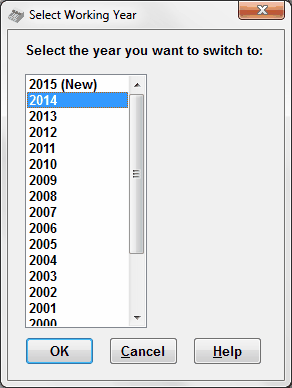
This window will only show the years of data that you currently have in the database. It will also show the next year to be added at the top of the list, unless the year after the current working year (according to your computer's system date) is already in the database. (I.e. if the current system date is in the year 2016, it will let you add 2017, but will not yet let you add 2018.) And finally it also shows the next earlier year that can be added, at the bottom of the list. Click on a year and click OK (or double-click on the year) to switch to that year.
If for some reason you have to move forward (or backward) multiple years beyond the years of data that are currently in the database, just use the menu option repeatedly, moving one year at a time.
You can always tell which year you are working in, because the title bar at the top of the DONATION window reads "DONATION YearNumber data for YourOrganizationName".
When you switch to a new year for the first time, a copy is made of all (or most) of your donor records, and all donor and donation category records. You can then start entering donations for the new year.
If you have never switched to that year before, the program will first confirm whether you wish to create the data for that year - you must answer Yes to proceed.
You will also be asked whether to skip copying donors that have not donated in the last 2 years. If you answer Yes, only donors present in the previous year that have donated within the last 2 years will be copied into the new year. If you answer No, all donors from the previous year will be copied. Please note that answering Yes does not delete any data from prior years. It merely reduces the list of donors copied into the new year.
In addition, if you have been entering pledges, it will ask whether to copy the pledge information for donors from the year you are copying from to the new year.
You can also create an earlier year that does not yet exist in your database with Maintenance ⇒ Change Year.
If you have created a new later year with Maintenance ⇒ Change Year, and decide you really didn't want to do so yet (perhaps because you want to first make some donor address corrections), you can delete that latest year you created with the Database ⇒ Delete Latest Year menu option, but only if you have not yet entered any donations for that year.
If you are in a new year and you need to go back to a previous year to do some work (for example to create a Corrected or Duplicate receipt), just use Maintenance ⇒ Change Year again to switch to the desired year. Next, do the required work in that year. Finally, switch back to your current working year with Maintenance ⇒ Change Year again.
Donors in Different Years are Separate
Once donors have been copied to a new year, they are separate from the donor records in the year they were copied from. Changes made in a given donor's record for one year, such as address corrections, will not be automatically made in any other year. If you want those changes to be present in multiple years, you can switch to the other year and re-do the changes (but see below for another option!). The same applies to changes to any donor or donation categories, for example changing their names.
A larger problem occurs if you add donors in one year and want them to also be present in another year. The most likely case is if you have moved to a new year, around the year end, then switched back to the previous year to add some final year-end donors and donations. You will want those newly added donors in the previous year to also be present in the new year's records. To achieve that, you use the Database ⇒ Copy Missing Donors menu option.
A slightly different problem occurs if you change one or more donors' postal addresses or email addresses, and want those changes to also be present in another year. That can be done with the Database ⇒ Copy Addresses menu option.
Multiple Users
If you use any of the Multiple User Options to share a database between multiple computers, please be aware that the current working year in the program is stored in the database itself. So for instance if you switch back to a prior year to look something up or make some corrections, and don't switch back, any other user accessing that same database or a copy of it will end up in the same prior year when they start the program. So it's a good idea to always switch back to the current working year when you are finished working in a prior year, so as not to confuse the other users!
If another user is logged into the Local Network or OnDemand version of the program when you try to change the year, you will be given an option to change it temporarily for your copy of the program, without affecting other users. (Prior to release 4.59 of DONATION this was not allowed - the year could only be changed when there were no other simultaneous users running the program.) You still cannot create a new year that does not current exist in the database if there are other simultaneous users.
Pledges and Changing Years
If you use pledges, there are some further details you should understand about what happens when you change to a new year for the first time, and it is copying donor data to the new year.
What happens exactly depends on what you have selected in the Pledges tab of the Maintenance ⇒ Main Window Options window. (Note: If you have turned off the display of the Annual Pledge field on the Donor Details tab of that window, no pledge information will be copied, because the assumption is that you aren't using pledges.)
If you select the pledging type "Simple Annual Pledge", you will be asked whether or not to copy the Annual Pledge amounts.
If you select the type "Annual with Start Date and Category", you will be asked whether or not to copy the pledge data. If you answer Yes, pledge start dates in the new year will be set to be January 1st of the new year.
If you select the type "Multi-Year", no question will be asked. Any multi-year pledges whose range of years includes the year that you are copying to will be copied over, with exactly the same details as they had in the year you are copying from.
Fiscal Years
If you are in a country like the United Kingdom, Australia or New Zealand and are Using Fiscal Year Data Entry and Receipting, the years displayed in this window will show as things like "FY2015/2016" for the fiscal 2015/2016 year. If you converted to doing that after you already had some years of data in the program, only the working year in which you did the conversion and all following years will be fiscal years, so prior years will just show the year number, because they are still calendar years.
The title bar of DONATION's main window also changes to show which fiscal year you are working in, when you are doing so, such as ""DONATION FY2015/2016 data for YourOrganizationName"
This topic was last edited on Dec 4, 2024